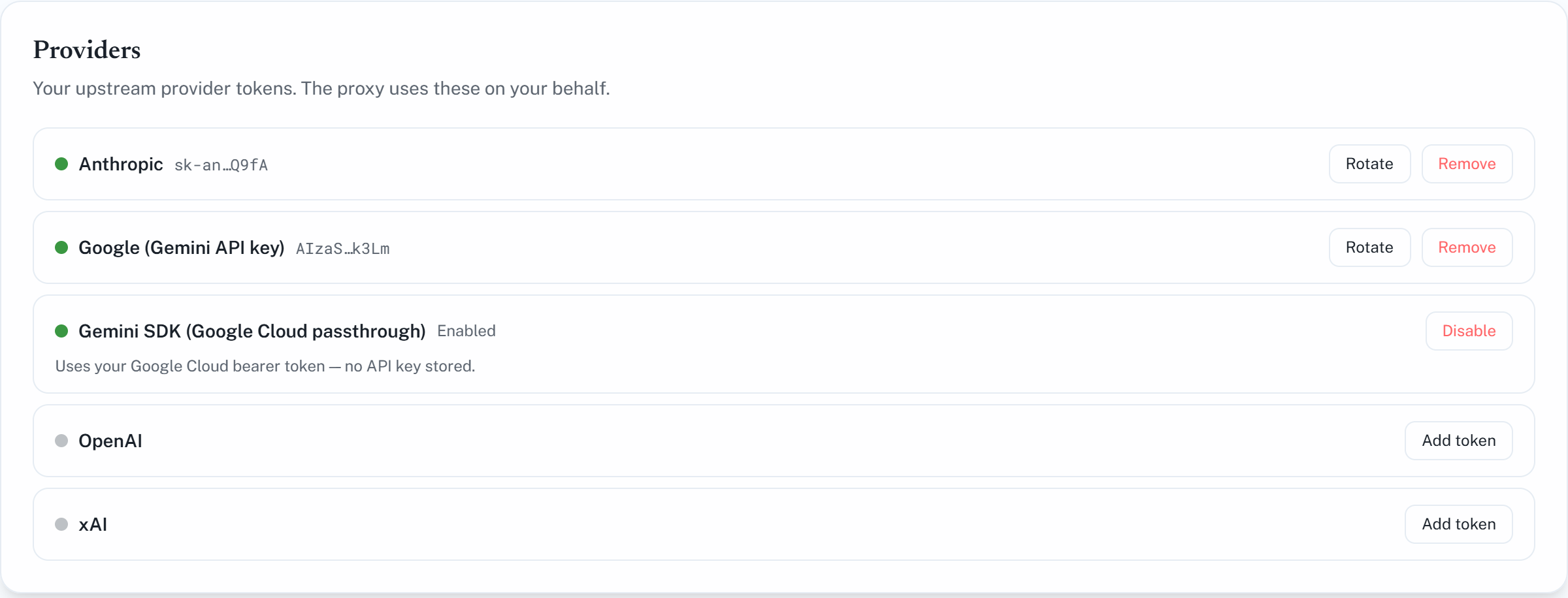
1. Account
The Account page shows who you're signed in as and Member since, the date your account was created.
Below it, the usage line shows how many tokens you've used this month out of your plan's quota. This is LEANOX.AI's own monthly limit, not your provider's. See Sign out and your token quota for what the colours and banners mean.
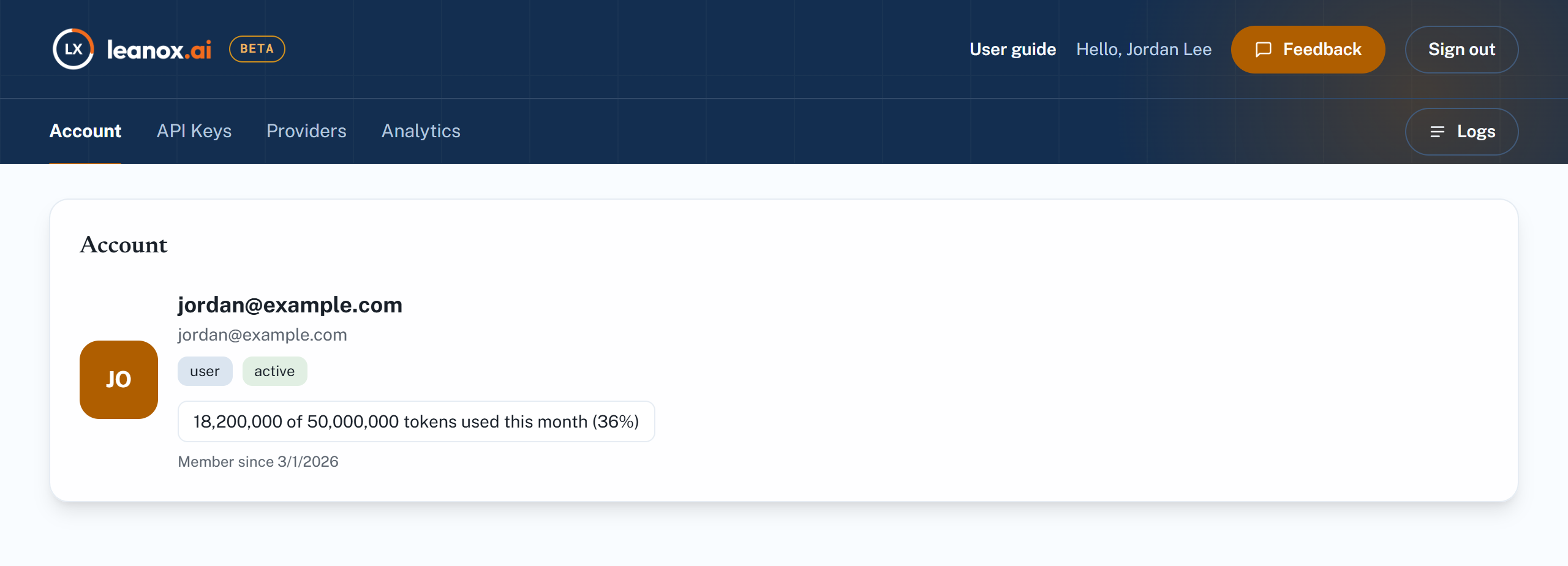
2. API Keys
Open API Keys in the dashboard.
What a key is. A LEANOX.AI API key (it starts with aip_sk_) is what your application uses to call LEANOX.AI. It tells LEANOX.AI which account a request belongs to, and it replaces your provider key in your code: your provider keys stay stored in LEANOX.AI and never need to be in your application.
Why have more than one. You can create as many keys as you like, and each one works on its own:
- If a key leaks or an application is retired, you revoke just that key; everything else keeps working.
- Analytics and Logs can be filtered by key, so you see the spend, savings and requests of each application separately.
- A clear label on each key shows where it's used and when it was last used.
Creating a key. Click + New key, enter a label, then click Create key. Copy the key straight away — it is shown only once (see Create your first API key).
The key list. Each key shows:
- Label and the key's first few characters, so you can tell keys apart without exposing them.
- Last used date, or Never used.
- Status — active or revoked.
Revoking a key. Click Revoke next to the key and confirm. This can't be undone. Applications still using the key stop working within minutes. Revoked keys stay in the list, and their history stays in Analytics, so past usage is never lost.
Tip: use one key per application or environment — for example separate keys for production, staging and each developer's laptop. You can then revoke one without affecting the others, and see the spend and savings of each in Analytics using the key filter.
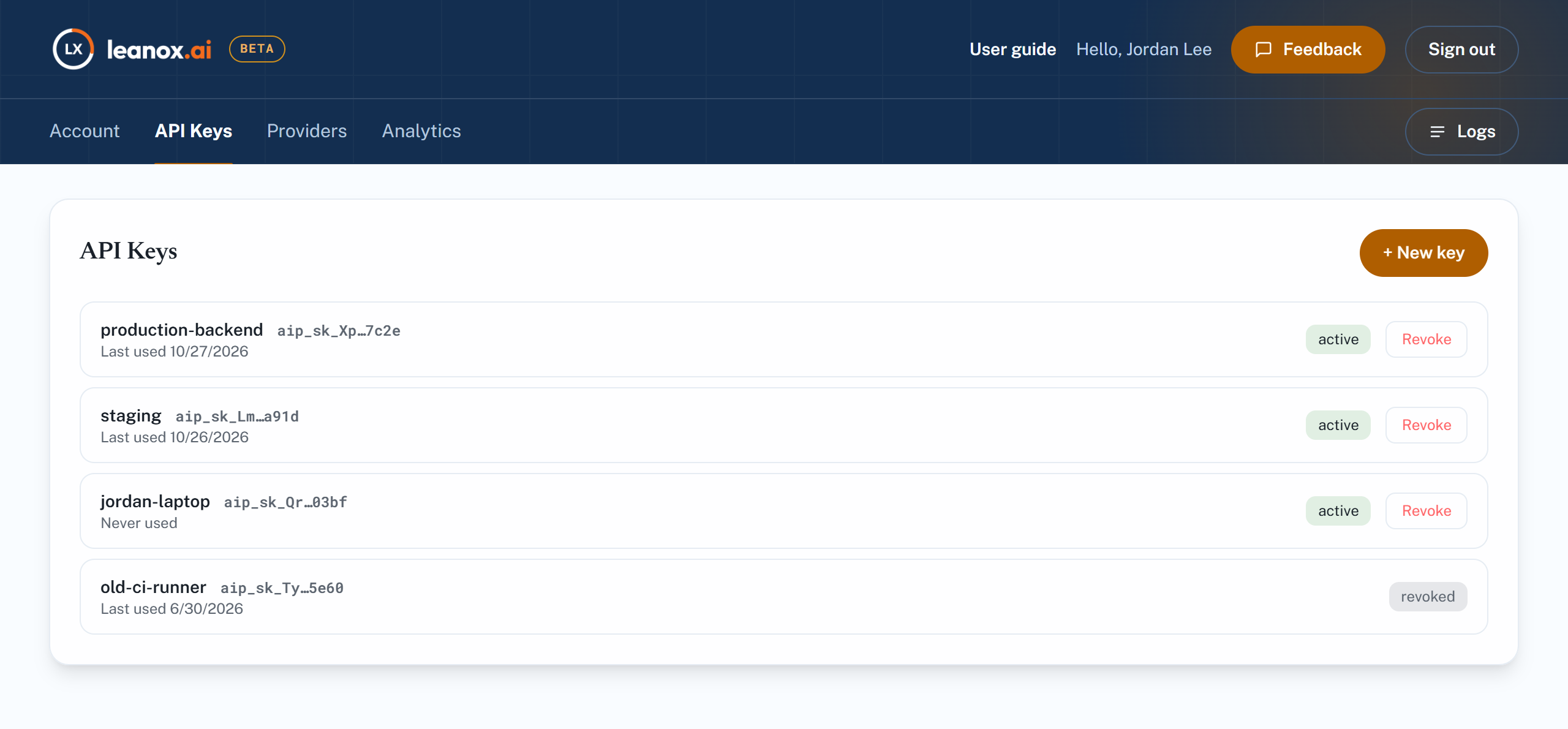
3. Providers
Open Providers in the dashboard.
LEANOX.AI forwards your requests to the provider using your provider account, so the provider bills you directly. Stored provider keys are encrypted and never displayed anywhere in full.
| Provider | What you provide |
|---|---|
| Anthropic | Your Anthropic API key |
| Google (Gemini API key) | Your Google AI Studio API key |
| Gemini via Gemini Enterprise Agent Platform (shown in the dashboard as Gemini SDK (Google Cloud passthrough)) | Nothing — your app's own Google Cloud credentials pass through with each request |
| OpenAI | Your OpenAI API key |
| xAI | Your xAI API key |
For OpenAI and xAI, savings are coming soon: your requests already go through LEANOX.AI and appear in Logs and Analytics, and savings will start automatically once they're available.
A green dot next to a provider means it's connected.
- Add token — paste your provider key and click Save token.
- Rotate — replace the stored key with a new one, for example after rotating it in your provider's console. Requests typically switch to the new key within 10 minutes.
- Remove — delete the stored key.
- Enable / Disable (Gemini Enterprise Agent Platform only) — turn Gemini via Gemini Enterprise Agent Platform on or off. No key is stored, so re-enabling is instant.
If a provider key leaks, revoke it in your provider's console first — that stops it at once — then add a new key here with Rotate.