1. Create your account and sign in
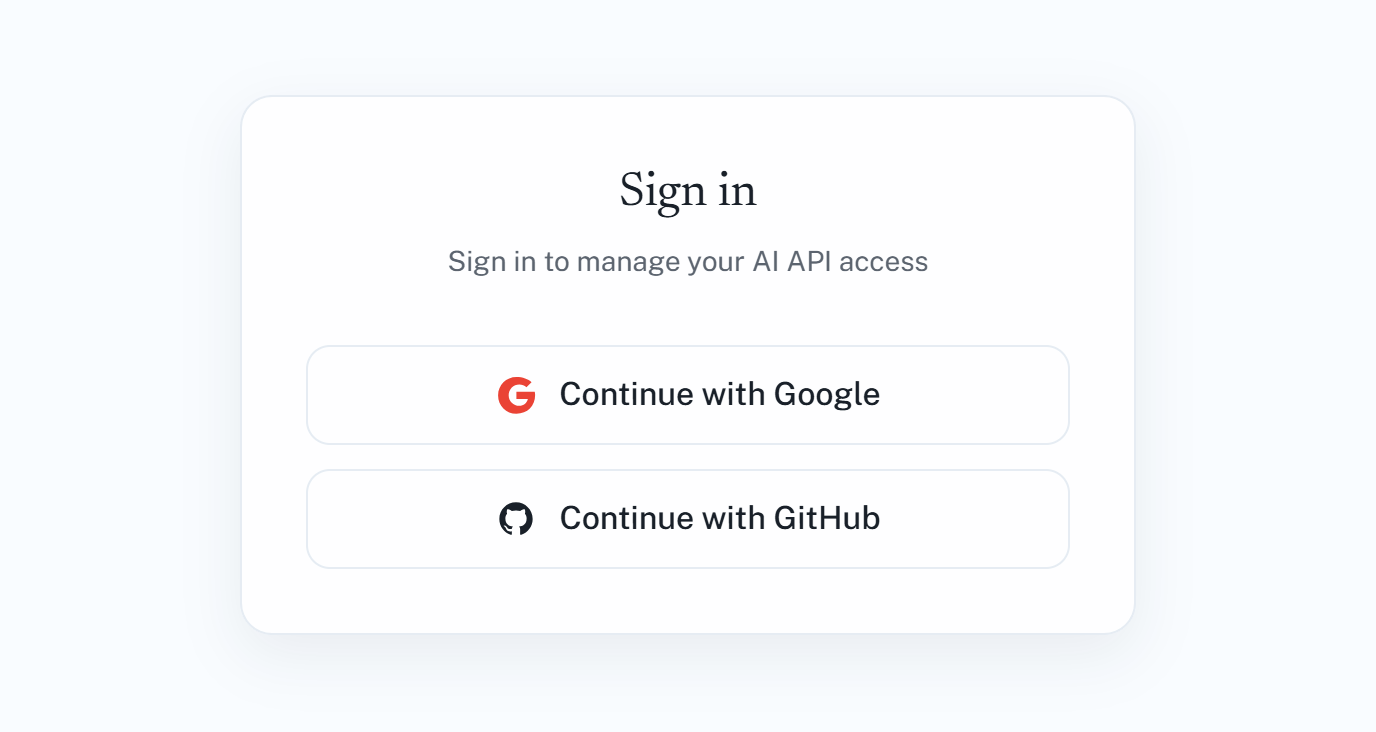
- Go to app.leanox.ai.
- Click Continue with Google or Continue with GitHub.
- Approve the sign-in with your existing Google or GitHub account.
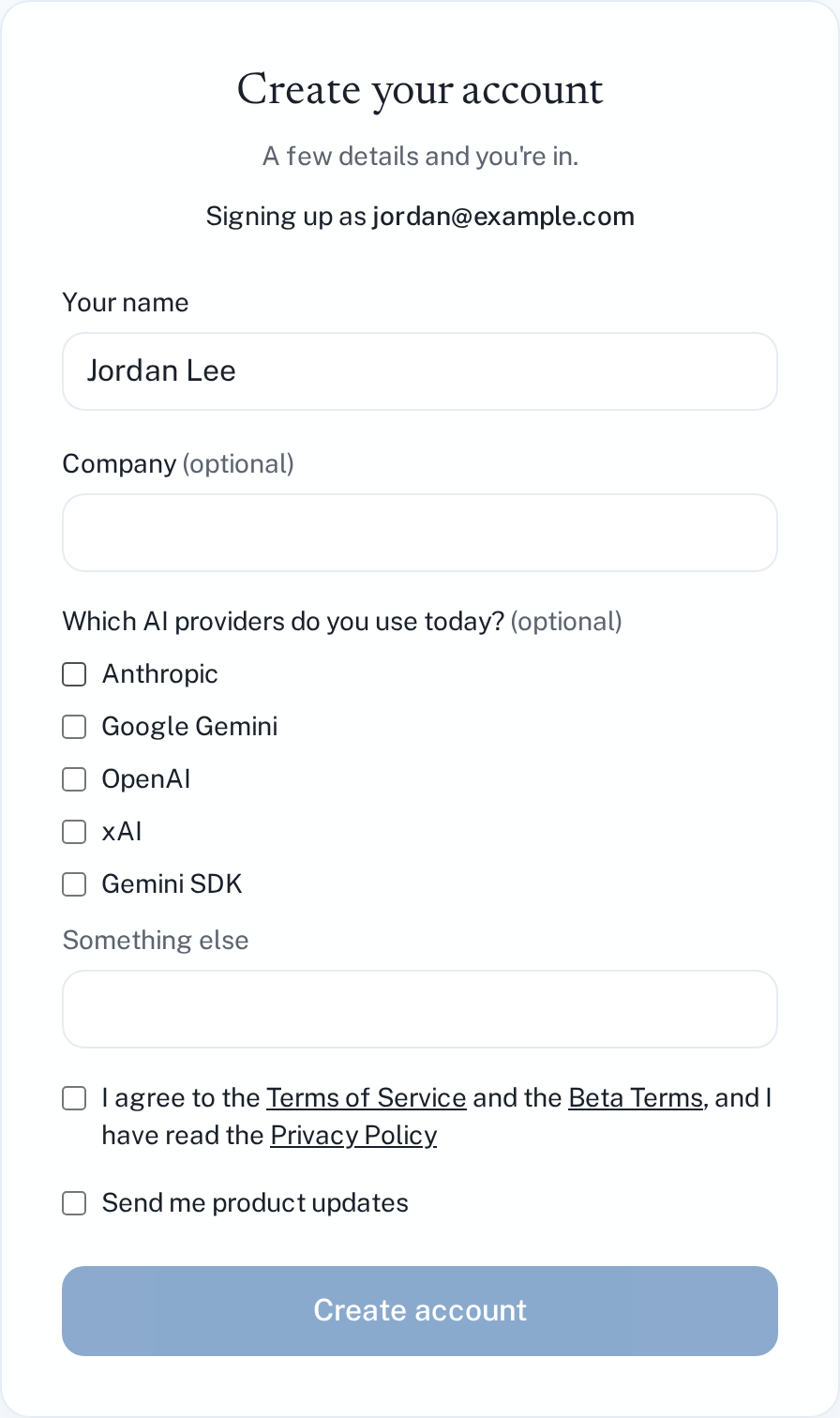
The first time, you sign up with your Google or GitHub account, and your LEANOX.AI account is created automatically. We ask for your name and a tick to accept our terms, and you can add your company and the providers you use if you want to. After that, sign in the same way, with the same account.
The Beta tag next to the logo means that LEANOX.AI is in its beta period. Your use of the service during this period is covered by the Beta Terms.
2. Connect a provider
LEANOX.AI calls your AI provider on your behalf, using your own provider account. Your provider keeps billing you directly, exactly as before. To make this work, give LEANOX.AI your provider credential:
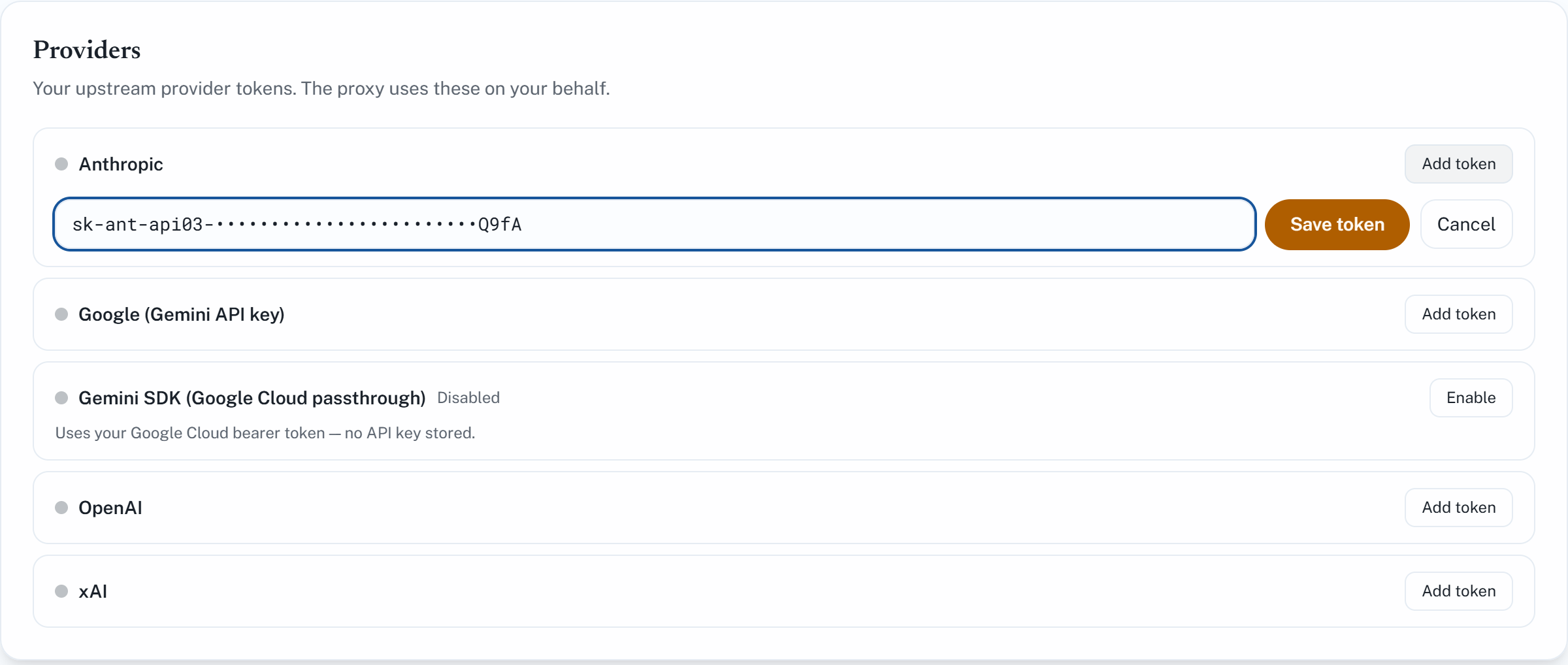
- Open Providers.
- Find your provider (for example Anthropic) and click Add token.
- Paste the API key from your provider's console and click Save token.
The provider now shows a green dot and the first few characters of the key. To protect your key, LEANOX.AI never displays it in full again once you've saved it.
Using Gemini via Gemini Enterprise Agent Platform? You don't store a key at all — just click Enable. See Providers for details.
3. Create your first API key
Your application authenticates to LEANOX.AI with a LEANOX.AI API key, not with your provider key.
- Open API Keys and click + New key.
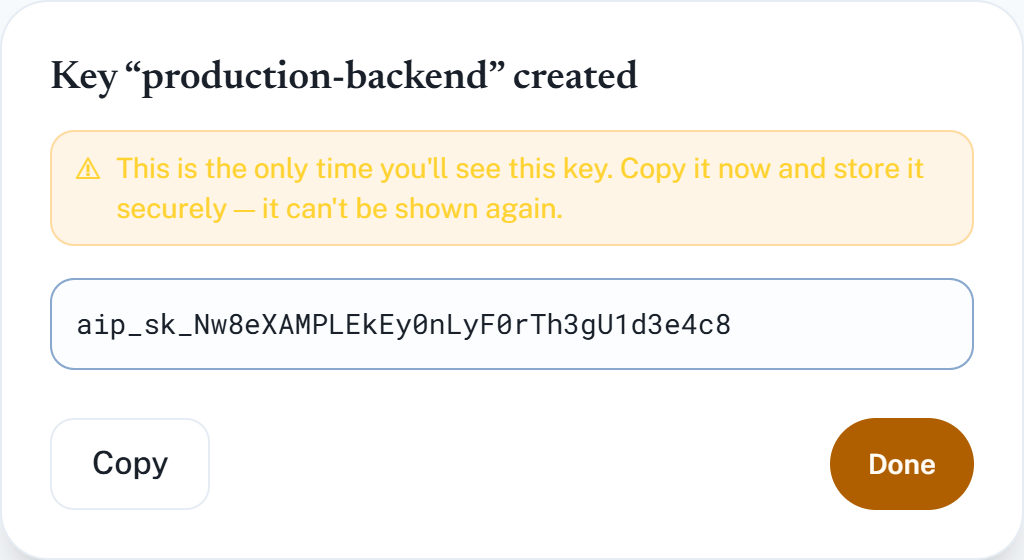
- Give the key a label that says where it will be used — for example production-backend or laptop — and click Create key.
- Click Copy and store the key somewhere safe, such as your secrets manager or environment variables.
The full key is shown only once. After you close this window it can't be displayed again. If you lose it, create a new key and revoke the old one.
LEANOX.AI keys start with aip_sk_.
4. Send your first request
Point your SDK at LEANOX.AI and use your LEANOX.AI key. Nothing else in your code changes — same SDK, same models, same request and response format.
| Provider | Base URL |
|---|---|
| Anthropic | https://api.leanox.ai/v1/anthropic |
| Google Gemini (API key) | https://api.leanox.ai/v1/gemini |
| Gemini via Gemini Enterprise Agent Platform | https://api.leanox.ai/v1/gemini-sdk |
| OpenAI | https://api.leanox.ai/v1/openai/v1 |
| xAI | https://api.leanox.ai/v1/xai/v1 |
OpenAI and xAI: savings coming soon. Your requests already go through LEANOX.AI and show up in Logs and Analytics. Savings for these providers will start automatically once they're available — you won't need to change anything.
Set your key
The examples read your key from the LEANOX_API_KEY environment variable, so it never ends up in your code. Set it once in your terminal:
export LEANOX_API_KEY="aip_sk_your_key_here"$env:LEANOX_API_KEY = "aip_sk_your_key_here"The curl examples below are for macOS and Linux terminals. On Windows, use the Python or Node.js examples.
Choose your provider and language
Anthropic
Works with both major versions of the Anthropic SDK: Python anthropic 1.x and 2.x, and Node.js @anthropic-ai/sdk 0.x and 1.x.
import os

import anthropic

client = anthropic.Anthropic(
    base_url="https://api.leanox.ai/v1/anthropic",
    api_key=os.environ["LEANOX_API_KEY"],
)

message = client.messages.create(
    model="claude-sonnet-5-5",
    max_tokens=1024,
    messages=[{"role": "user", "content": "Hello from LEANOX.AI!"}],
)
print(message.content[0].text)
import Anthropic from "@anthropic-ai/sdk";
const client = new Anthropic({
baseURL: "https://api.leanox.ai/v1/anthropic",
apiKey: process.env.LEANOX_API_KEY,
});
const message = await client.messages.create({
model: "claude-sonnet-5-5",
max_tokens: 1024,
messages: [{ role: "user", content: "Hello from LEANOX.AI!" }],
});
console.log(message.content[0].text);# SDK v1 style
curl https://api.leanox.ai/v1/anthropic/v1/messages \
-H "x-api-key: $LEANOX_API_KEY" \
-H "anthropic-version: 2023-06-01" \
-H "content-type: application/json" \
-d '{"model": "claude-sonnet-5-5", "max_tokens": 1024,
"messages": [{"role": "user", "content": "Hello from LEANOX.AI!"}]}'
# SDK v2 style
curl https://api.leanox.ai/v1/anthropic/v1/messages \
-H "Authorization: Bearer $LEANOX_API_KEY" \
-H "anthropic-version: 2026-10-21" \
-H "content-type: application/json" \
-d '{"model": "claude-sonnet-5-5", "max_tokens": 1024,
"messages": [{"role": "user", "content": "Hello from LEANOX.AI!"}]}'Google Gemini (API key)
import os

from google import genai
from google.genai import types

client = genai.Client(
    api_key=os.environ["LEANOX_API_KEY"],
    http_options=types.HttpOptions(base_url="https://api.leanox.ai/v1/gemini"),
)

response = client.models.generate_content(
    model="gemini-3.8-flash",
    contents="Hello from LEANOX.AI!",
)
print(response.text)
import { GoogleGenAI } from "@google/genai";
const ai = new GoogleGenAI({
apiKey: process.env.LEANOX_API_KEY,
httpOptions: { baseUrl: "https://api.leanox.ai/v1/gemini" },
});
const response = await ai.models.generateContent({
model: "gemini-3.8-flash",
contents: "Hello from LEANOX.AI!",
});
console.log(response.text);curl "https://api.leanox.ai/v1/gemini/v1beta/models/gemini-3.8-flash:generateContent" \
-H "x-goog-api-key: $LEANOX_API_KEY" \
-H "content-type: application/json" \
-d '{"contents": [{"parts": [{"text": "Hello from LEANOX.AI!"}]}]}'Gemini via Gemini Enterprise Agent Platform
import os

from google import genai
from google.genai import types

client = genai.Client(
    vertexai=True,
    project="your-gcp-project-id",
    location="us-central1",
    http_options=types.HttpOptions(
        base_url="https://api.leanox.ai/v1/gemini-sdk",
        headers={"x-goog-api-key": os.environ["LEANOX_API_KEY"]},
    ),
)

response = client.models.generate_content(
    model="gemini-3.8-flash",
    contents="Hello from LEANOX.AI!",
)
print(response.text)
import { GoogleGenAI } from "@google/genai";
const ai = new GoogleGenAI({
vertexai: true,
project: "your-gcp-project-id",
location: "us-central1",
httpOptions: {
baseUrl: "https://api.leanox.ai/v1/gemini-sdk",
headers: { "x-goog-api-key": process.env.LEANOX_API_KEY },
},
});
const response = await ai.models.generateContent({
model: "gemini-3.8-flash",
contents: "Hello from LEANOX.AI!",
});
console.log(response.text);package main
import (
"context"
"fmt"
"net/http"
"os"
"google.golang.org/genai"
)
func main() {
ctx := context.Background()
client, err := genai.NewClient(ctx, &genai.ClientConfig{
Backend: genai.BackendVertexAI,
Project: "your-gcp-project-id",
Location: "us-central1",
HTTPOptions: genai.HTTPOptions{
BaseURL: "https://api.leanox.ai/v1/gemini-sdk",
Headers: http.Header{
"x-goog-api-key": []string{os.Getenv("LEANOX_API_KEY")},
},
},
})
if err != nil {
panic(err)
}
resp, err := client.Models.GenerateContent(ctx, "gemini-3.8-flash", genai.Text("Hello from LEANOX.AI!"), nil)
if err != nil {
panic(err)
}
fmt.Println(resp.Text())
}Gemini Enterprise Agent Platform users: keep Vertex AI mode and your usual Google Cloud credentials. Your LEANOX.AI key goes in the x-goog-api-key header only — don't pass any key in api_key or in the GEMINI_API_KEY / GOOGLE_API_KEY environment variables. Doing so switches the SDK out of Vertex AI mode and your requests will fail.
OpenAI
import os

from openai import OpenAI

client = OpenAI(
    base_url="https://api.leanox.ai/v1/openai/v1",
    api_key=os.environ["LEANOX_API_KEY"],
)

response = client.chat.completions.create(
    model="gpt-5.5",
    messages=[{"role": "user", "content": "Hello from LEANOX.AI!"}],
)
print(response.choices[0].message.content)
import OpenAI from "openai";
const client = new OpenAI({
baseURL: "https://api.leanox.ai/v1/openai/v1",
apiKey: process.env.LEANOX_API_KEY,
});
const response = await client.chat.completions.create({
model: "gpt-5.5",
messages: [{ role: "user", content: "Hello from LEANOX.AI!" }],
});
console.log(response.choices[0].message.content);curl https://api.leanox.ai/v1/openai/v1/chat/completions -H "Authorization: Bearer $LEANOX_API_KEY" -H "content-type: application/json" -d '{"model": "gpt-5.5",
"messages": [{"role": "user", "content": "Hello from LEANOX.AI!"}]}'xAI
xAI's API is OpenAI-compatible, so you use the OpenAI SDK with the xAI base URL.
import os

from openai import OpenAI

client = OpenAI(
    base_url="https://api.leanox.ai/v1/xai/v1",
    api_key=os.environ["LEANOX_API_KEY"],
)

response = client.chat.completions.create(
    model="grok-4.5",
    messages=[{"role": "user", "content": "Hello from LEANOX.AI!"}],
)
print(response.choices[0].message.content)
import OpenAI from "openai";
const client = new OpenAI({
baseURL: "https://api.leanox.ai/v1/xai/v1",
apiKey: process.env.LEANOX_API_KEY,
});
const response = await client.chat.completions.create({
model: "grok-4.5",
messages: [{ role: "user", content: "Hello from LEANOX.AI!" }],
});
console.log(response.choices[0].message.content);curl https://api.leanox.ai/v1/xai/v1/chat/completions -H "Authorization: Bearer $LEANOX_API_KEY" -H "content-type: application/json" -d '{"model": "grok-4.5",
"messages": [{"role": "user", "content": "Hello from LEANOX.AI!"}]}'5. Check it worked
Click Logs in the top-right of the dashboard. Within a few minutes, your request appears at the top of the list, with a status of 200, the provider, the model and the number of tokens. If you see a different status, or no row at all, see Troubleshooting.
It shows up in Analytics in the same few minutes. If you don't see it yet, wait a moment and reload the page.
6. Sign out and your token quota
To sign out, click Sign out in the top-right corner.
Each plan includes a monthly token quota: the number of tokens your requests can use through LEANOX.AI each month. It's LEANOX.AI's own limit, separate from any quota or rate limit your provider sets on your provider account.
The Account and Analytics pages always show your usage so far, for example 18,200,000 of 50,000,000 tokens used this month (36%). The line turns amber when you're close to your quota and red once it's used up. Two banners can also appear across the top of every page:
- Close to your quota — a warning showing the date your quota resets. Click Dismiss to hide it for the rest of your session.
- Quota used — requests through the gateway are blocked until the date shown. This banner can't be dismissed.
Need more? Contact us.